

Collaboration
Invite team members with role-based permissions, manage access requests, and share projects via magic links — all in real time.
Invite team members to collaborate in projects or workspaces, assign roles and permissions, and see changes in real time as you work together.
Only the project owner is charged. All usage — AI tokens, sandbox compute, and connected services (E2B, GitHub, Vercel) — is billed to the project owner's account. Collaborators can use these resources freely and are never charged.
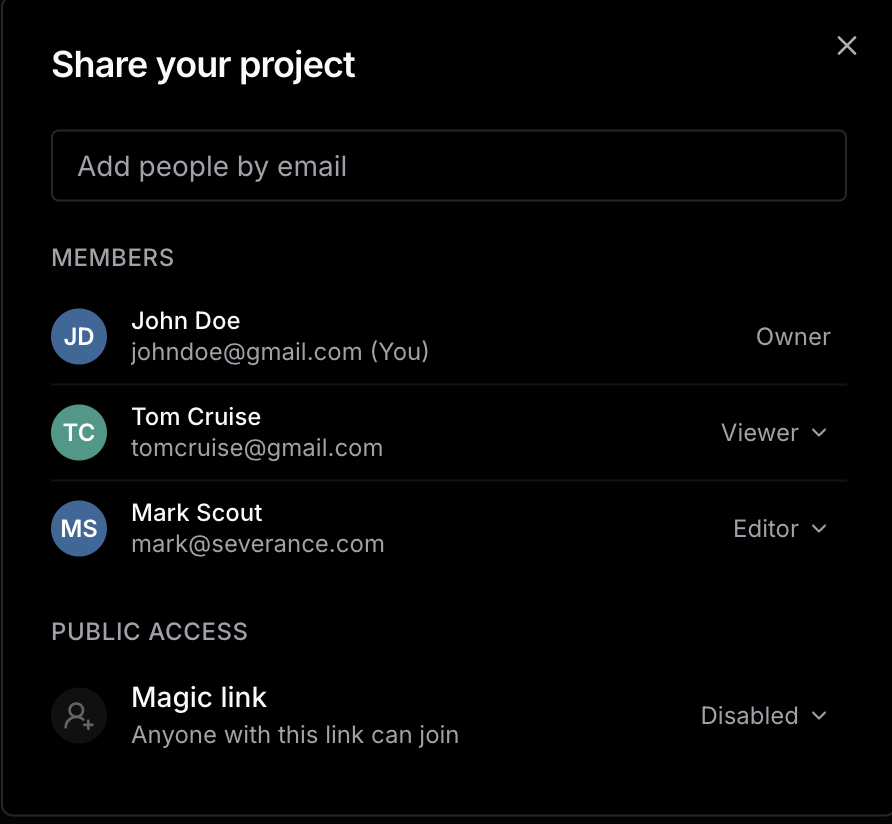
Roles
Every project member has one of four roles. The Owner is the person who created the project — this role cannot be assigned or transferred. The three assignable roles are Admin, Editor, and Viewer.
By default, project access requests are sent at the lowest privilege level (Viewer) so you can consciously escalate access rather than accidentally over-share.
Permissions
Feature Access
| Feature | Owner | Admin | Editor | Viewer |
|---|---|---|---|---|
| Preview | ✓ | ✓ | ✓ | ✓ |
| Chat (AI prompt) | ✓ | — | ✓ | — |
| IDE (Code Editor) | ✓ | ✓ | ✓ | — |
| Secrets | ✓ | ✓ | ✓ | — |
| Workflow | ✓ | ✓ | ✓ | — |
| Sandbox settings | ✓ | ✓ | ✓ | — |
| MCP (manage project MCPs) | ✓ | ✓ | ✓ | — |
| MCP (toggle owner MCPs) | ✓ | — | — | — |
| Download code | ✓ | ✓ | ✓ | — |
| GitHub (full: pull, push, branch) | ✓ | ✓ | ✓ | — |
| GitHub (view linked repo only) | ✓ | ✓ | ✓ | ✓ |
| Vercel deployment | ✓ | ✓ | ✓ | — |
| View deployed site | ✓ | ✓ | ✓ | ✓ |
| Connect owner's GitHub account | ✓ | — | — | — |
| Connect owner's Vercel account | ✓ | — | — | — |
GitHub and Vercel are connected to the owner's account. Admins and Editors can trigger deployments and push code through the owner's credentials — they cannot connect or disconnect those accounts themselves.
Member Management
| Action | Owner | Admin | Editor | Viewer |
|---|---|---|---|---|
| View member list | ✓ | ✓ | ✓ | ✓ |
| Invite new members | ✓ | ✓ | — | — |
| Assign Admin role | ✓ | — | — | — |
| Assign Editor / Viewer role | ✓ | ✓ | — | — |
| Remove members (non-admin) | ✓ | ✓ | — | — |
| Remove Admin members | ✓ | — | — | — |
| View / cancel pending invitations | ✓ | ✓ | — | — |
| View / approve access requests | ✓ | ✓ | — | — |
| Generate / disable magic link | ✓ | ✓ | — | — |
Inviting Members
Open the collaboration dialog by clicking the Share button in the top bar of your project.
The invite input supports multiple emails at once. Type an email and press Space, ,, or Enter to confirm it as a tag — or paste a comma-separated list and all addresses will be parsed automatically.
- Valid email — shown as a normal tag with a colored avatar initial
- Invalid email — shown as a red tag; must be removed before the invite can be sent
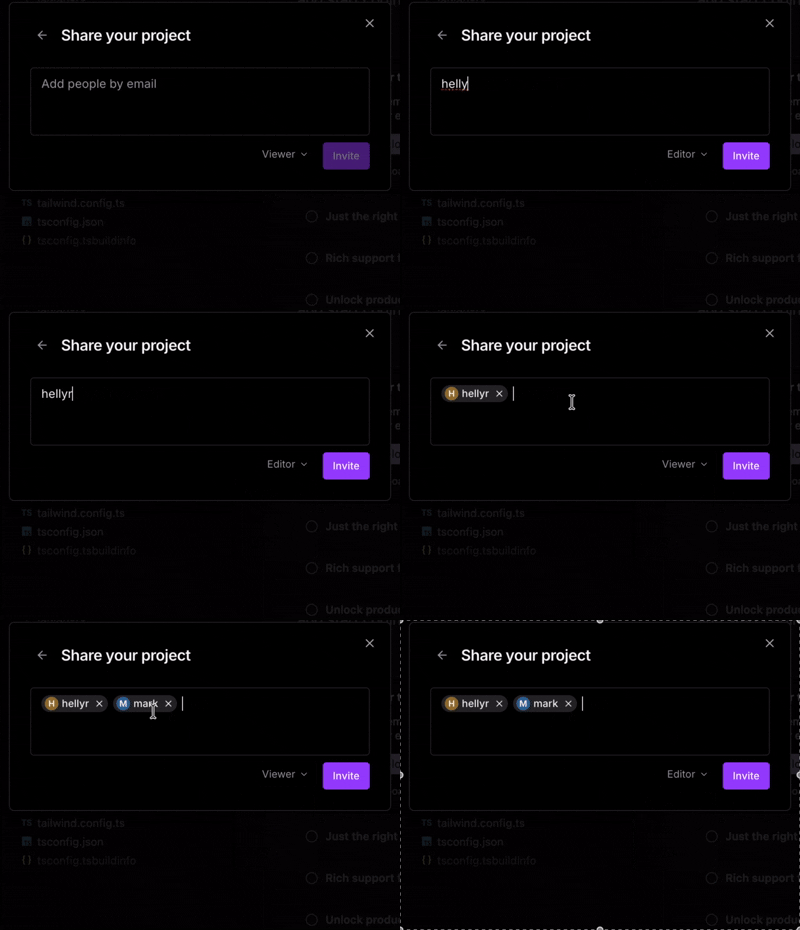
Select a role from the role picker and click Invite. Each recipient receives an email with a link to join the project.
Role picker constraints:
- Owners can invite as Viewer, Editor, or Admin
- Admins can invite as Viewer or Editor only
Pending invitations appear under Pending invitations in the dialog. Owners and Admins can cancel any pending invite, immediately revoking the invite link.
Magic Link
A magic link is a shareable URL that grants anyone who opens it instant access to the project — no email invite needed. Ideal for onboarding multiple people at once.
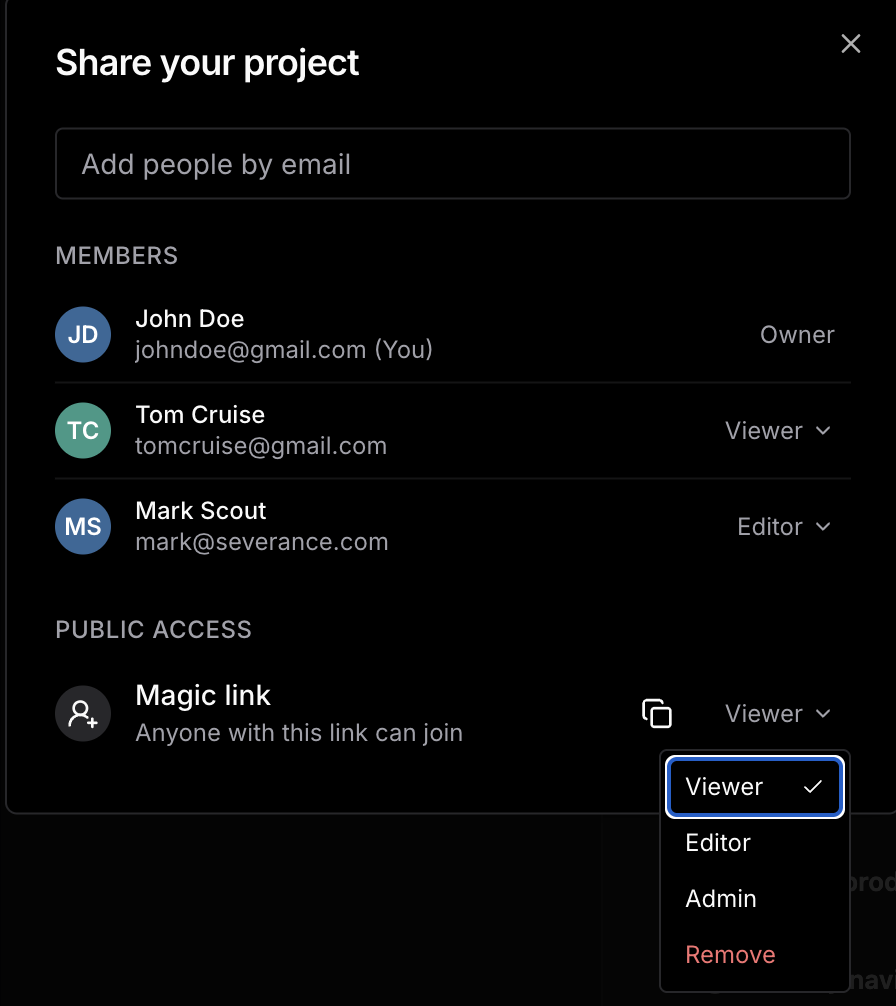
To generate one, click the Magic link row in the collaboration dialog, pick a role, and the link is created immediately.
A magic link is scoped to a single role. Generate separate links if people need different access levels.
If a magic link is leaked, disable it immediately. Generating a new magic link automatically revokes the previous one.
Requesting Access
If someone tries to open a project they don't have access to, Ideavo shows them an access dialog:
- Not signed in — prompted to sign in first
- Signed in but no access — can click Request access; the owner and all Admins see this request under Access requests in the collaboration dialog
Once approved, the user is added as a Viewer. The owner or admin can change their role afterwards.
If you're sharing a project with a large group, use a magic link instead of the request-access flow to avoid manually approving each person.
Managing Existing Members
From the members list, Owners and Admins can:
- Change a member's role — click the role badge and pick a new one from the dropdown
- Remove a member — click the role badge and select Remove; the member immediately loses access
Admins cannot promote anyone to Admin or remove other Admins — only the Owner can do that.