

File Mentions
Scope the agent's context with @file mentions, pointing it straight at the files you mean.
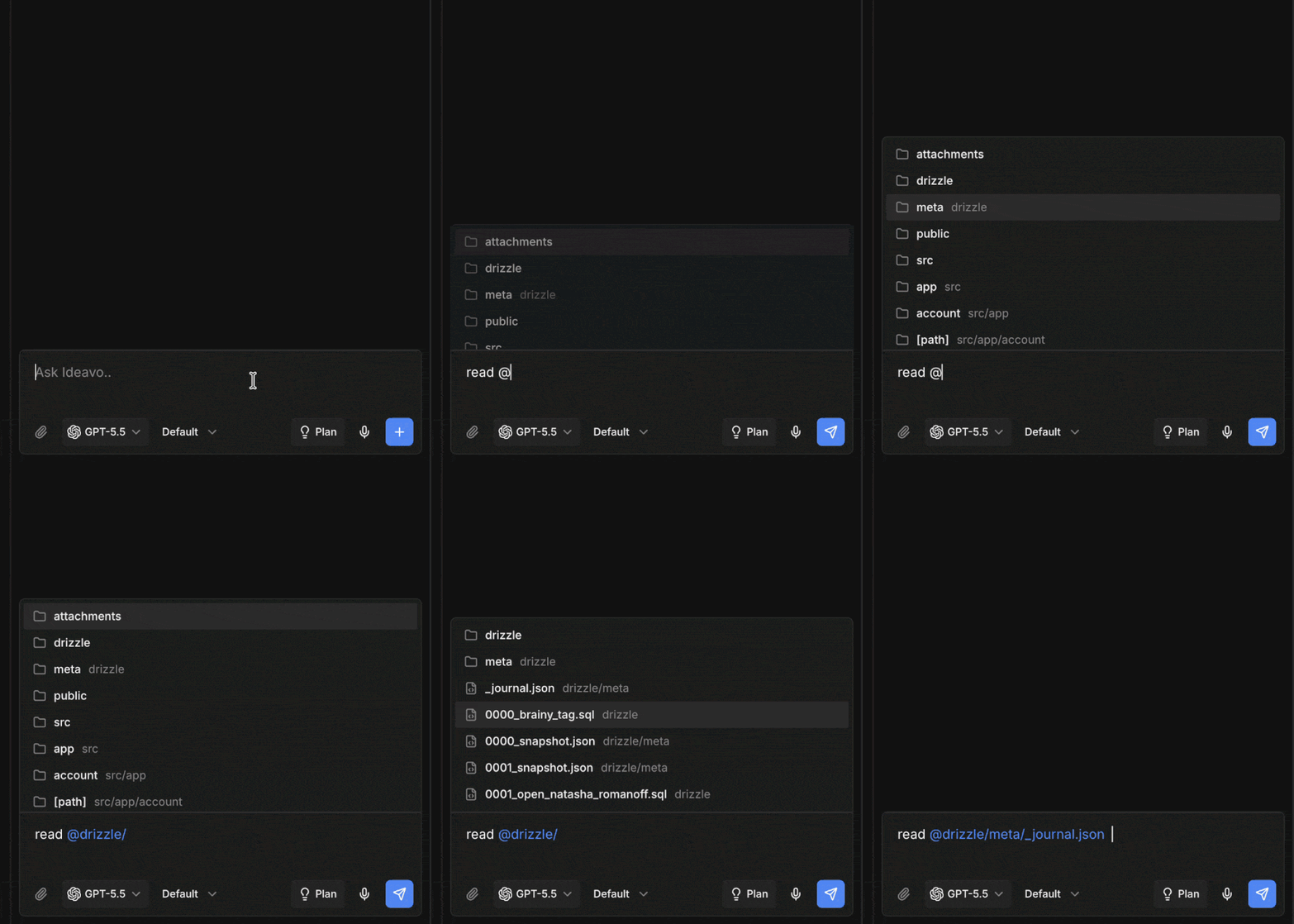
You can scope the agent's context with @file mentions. Type @ in the chat input and start typing a name — Ideavo shows matching files and folders from your project, and picking one adds it to your prompt.
Why Use It
Without a mention, the agent has to go looking: searching your codebase, guessing at names, opening files to check whether they're the right ones. A mention removes that step — it hands over the exact path, so the agent reads the file straight away and spends its effort on the actual work.
That means less back-and-forth when several files share a name, and a lot less wasted context on a large project.
How To Use It
- Type
@followed by part of a file or folder name. - Pick from the list — mention a folder to point at everything inside it.
- Mention as many files as you need — mentions aren't capped like uploads are.
Mentioned files show up like attachments on your message. They already live in your project, so nothing is uploaded — the agent just reads them where they are.
Good To Know
- The menu searches your whole project, not just open files.
- An email address like
[email protected]won't trigger the menu. - Edit your prompt freely — a mention sticks around as long as you leave the
@pathintact.