

Publish
Deploy your Ideavo project to Vercel or Railway for web apps, or follow Expo's guide for mobile app store publishing.
Publish deploys your project to Vercel or Railway and gives it a live production URL. Once connected, you can deploy, redeploy, and manage your deployment directly from inside Ideavo.
Choosing a Provider
The Publish panel supports Vercel and Railway. Select the provider you want to use, then connect your account if it is not already linked.
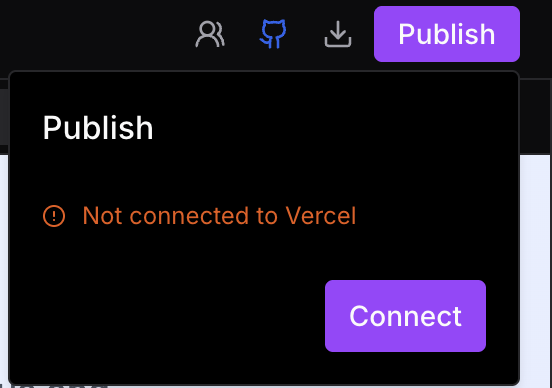
Click the Publish icon in the top-right of your project.
Select Vercel or Railway from the provider tabs.
Click Connect to begin the provider authorization flow.
Log in to the selected provider and approve the Ideavo integration.
Return to Ideavo once the account is connected.
Once authorized, the panel updates to the connected state — ready to deploy.
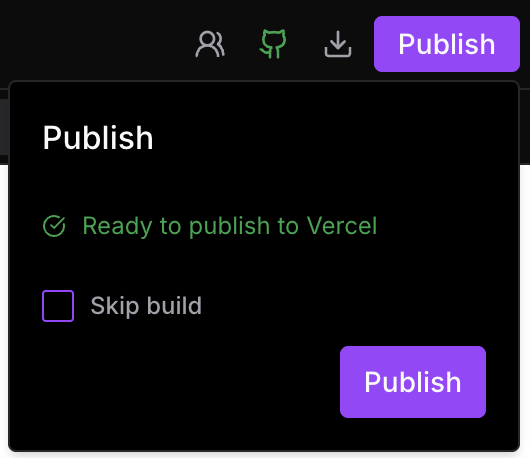
Deploying Your App
Click Deploy to start the deployment. Ideavo will first build your project, then publish it to the selected provider.
Skip Build
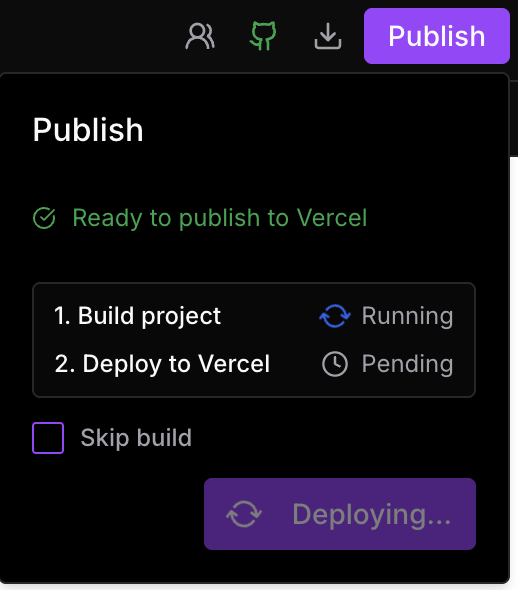
When deploying, you'll see a Skip Build option. If checked, the build step is bypassed and your project is pushed directly to the selected provider.
Only use Skip Build when you need to deploy quickly and are confident there are no errors. We recommend keeping it unchecked — the build step catches issues before they reach production.
Build & Deploy
Once the build completes successfully, Ideavo proceeds to publish to the selected provider automatically.
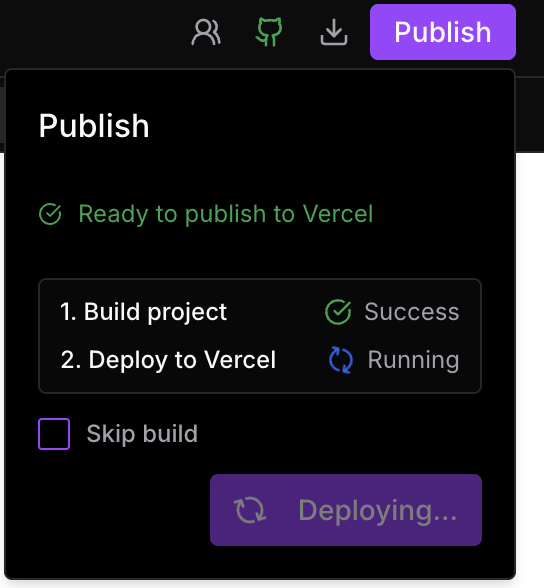
When the deployment finishes, you'll see your live production URL.
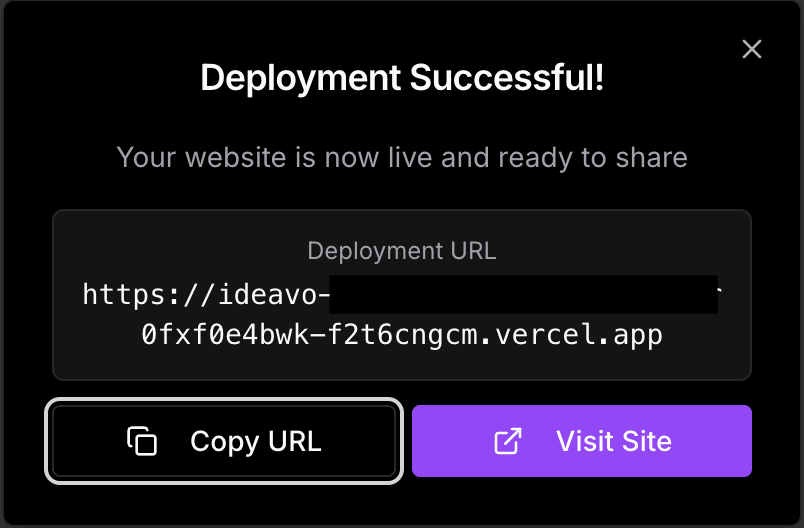
After Deployment
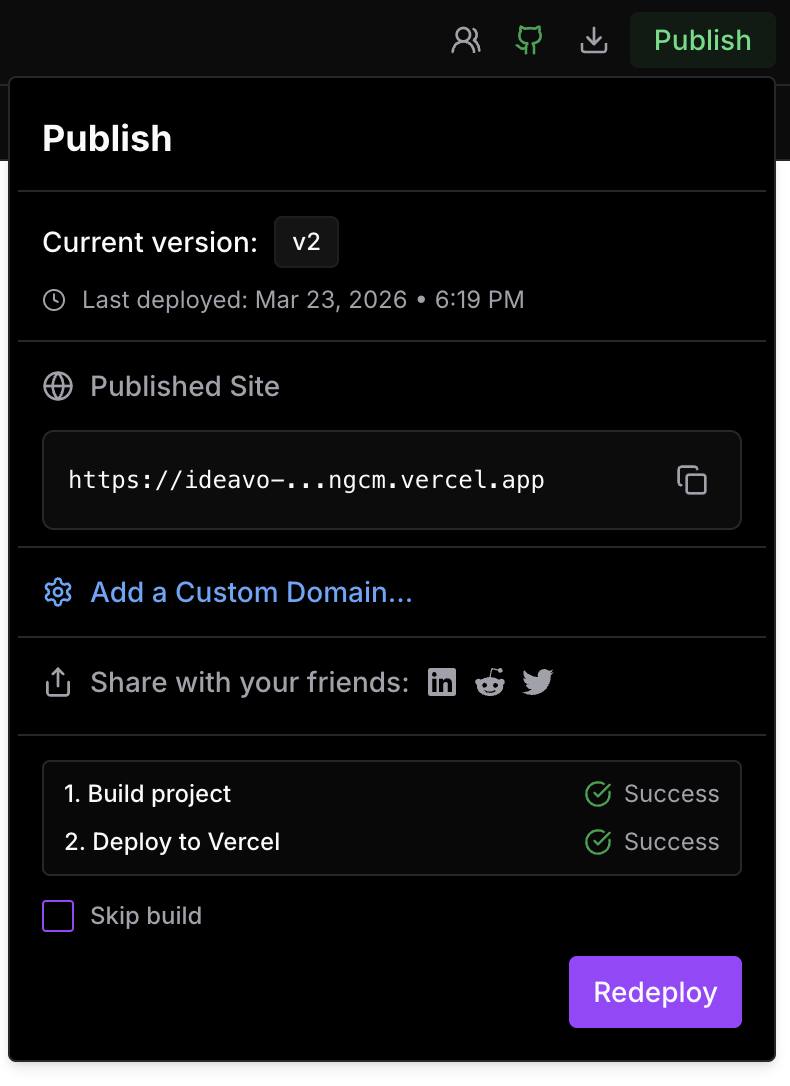
After a successful deployment the panel shows your deployment details and management options:
- Deployment URL — share your live site link directly from the panel
- Redeploy — push a fresh deployment without leaving Ideavo
- Version — see which version is currently live
- Last deployed — exact date and time of the most recent deployment
Environment Variables
Each deploy sends your project's current variables to Vercel or Railway, replacing matching ones there. Set your production values on the host after every deploy. See the full guide:
Switching Providers
If your project is already deployed on one provider, you can switch to the other provider from the Publish panel. Ideavo will ask you to confirm before replacing the active deployment.
Custom Domains
You can attach a custom domain to an active Vercel or Railway deployment directly from the post-deploy panel. See the full setup guide:
Mobile Apps — Expo
For publishing to the App Store or Google Play, follow Expo's official guide:
When deploying an Expo project through Publish, only the web build is published.