

Preview
Preview renders the front end of your app in real time — with device emulation, port selection, and a shareable sandbox URL.
Preview renders the front end of the app you are building in real time. It runs inside a live sandbox environment and updates as you make changes. Several controls in the top navigation bar let you navigate, share, and configure the preview.
Navigation Bar
Address Bar & Port
The address bar displays the relative path of the current page in your app. The port selector lets you switch between any port running in the sandbox — useful when your project runs multiple services (e.g., frontend on 3000, API on 8000).
Copy Preview URL
Copies the sandbox URL of your project. Paste it into any browser to view your app outside of Ideavo.
This is a temporary link. It stays active only while Ideavo is open — a continuous heartbeat keeps the sandbox alive. Once you close the platform, the link expires immediately. Use it for quick sharing during development, not for publishing.
Open in New Tab
Opens the same sandbox preview in a new browser tab without copy-pasting. Behavior is identical — the link expires when the platform closes.
Home
For multi-page applications, the Home button returns you to the main page of your app.
Device Preview
The device preview lets you see how your app renders on different screen sizes without leaving Ideavo.
Choose Desktop for full-width preview, or Mobile to enable the device frame and preset dropdown.
Pick a device preset to set a specific width and height (Mobile only).
Mobile presets cover popular iPhone and Android sizes — helping you validate responsive breakpoints, fonts, and tap targets before shipping.
Preview is for testing only. For a permanent deployment with a shareable URL, use the Publish feature.
Restart Dev Server
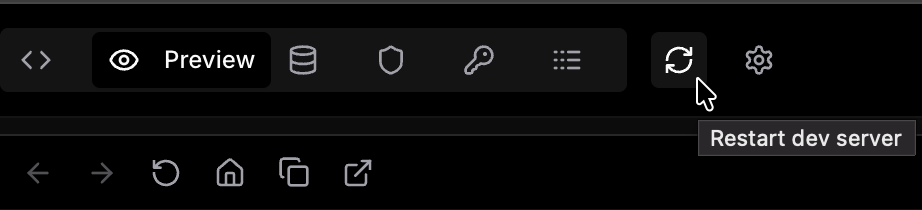
The Restart Dev Server button re-initializes your local development environment. It stops and restarts the active dev server, clears temporary caches, and reloads configuration — ensuring the preview reflects your latest changes when automatic hot reload fails.
When to Use It
- Preview hangs, doesn't load, or shows stale data
- After switching frameworks or changing environment variables
- As the first troubleshooting step for unexpected preview behavior
Restarting the dev server does not affect your code — it only refreshes the runtime environment.