

MCP (Model Context Protocol)
Connect the Ideavo agent to external tools, databases, and services using the open MCP standard — enabling real-world actions beyond code generation.
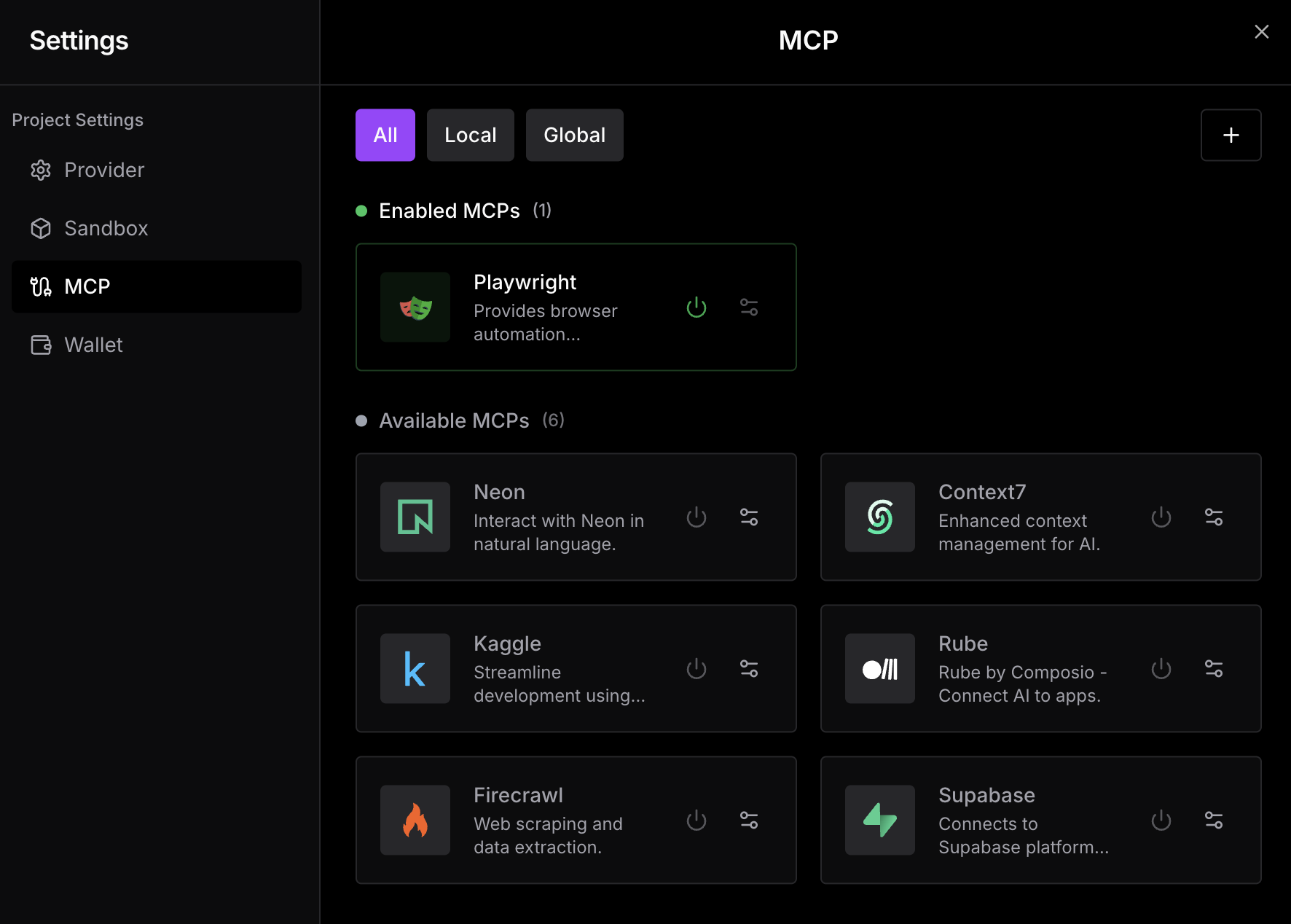
Model Context Protocol (MCP) is an open standard that lets AI agents connect to external tools, services, and data sources. By enabling MCPs in Ideavo, the agent can interact with databases, third-party platforms, browsers, and APIs directly — without you having to manually bridge the gap between tools.
Benefits
Extended capabilities
Goes beyond code generation to take real-world actions — browse, query, deploy, and more.
Direct service connections
Query databases, APIs, and data sources as part of the same conversation.
Reduced context-switching
The agent can read and act on external systems without you leaving Ideavo.
Predefined MCPs
Ideavo ships with a curated set of MCPs ready to enable. No configuration needed — just toggle them on.
| MCP | Description |
|---|---|
| Playwright | Browser automation — visual testing, E2E testing, and debugging |
| Neon | Interact with Neon databases in natural language |
| Context7 | Enhanced context management for AI |
| Kaggle | Streamline development using Kaggle datasets |
| Rube | Connect AI to third-party apps via Composio |
| Firecrawl | Web scraping and data extraction |
| Supabase | Connect to the Supabase platform |
Enabling a Predefined MCP
The agent includes that MCP's tools in its context immediately — no restart needed.
Enabling MCPs increases token usage. Enable only the MCPs relevant to your current project to keep usage efficient.
Start Projects with MCPs Ready
On mobile, open the + menu during project creation to access the same MCP selector.
Global MCPs that are already enabled are not shown in the new project selector because they are available by default.
When creating a new project, you can choose which MCPs should be included from the start. Selected MCPs are enabled by default as soon as the project opens, so the agent has the right tools available immediately instead of requiring setup after creation.
Use the MCP icon in the project creation flow to open the MCP selector. The count on the top-right of the icon shows how many MCPs will be included in the new project.

The selector shows available MCPs. The Global section lists globally configured MCPs that are not currently enabled; already enabled global MCPs are available by default and are not shown here. Selected MCPs display a checkmark, and you can use the remove icon to exclude them before creating the project.
If you select a global MCP, Ideavo opens its configuration dialog with the available details pre-filled. To include it in the new project, switch the scope toggle from Global to Project, then submit the dialog. When submitted, that MCP becomes project-only for this project and is removed from the global MCP list.


Changes made here apply only to the project being created.
You can also click the + button in the top-right of the selector to add a custom MCP for the project. Custom MCPs added during project creation are also project-specific and are not saved as global MCPs.
Custom MCPs
Beyond the predefined list, you can connect any MCP-compatible server to Ideavo.
Adding a Custom MCP
Scope
Every MCP is enabled at a specific scope. Use the All / Local / Global tabs at the top of the MCP panel to filter by scope.
Local
Active only within the current project. This includes MCPs selected during project creation. Best for project-specific tools like a particular database or staging API.
Global
Active across all your Ideavo projects. Best for general-purpose tools you use everywhere.
Permissions
MCP access varies by role.
| Action | Owner | Admin | Editor | Viewer |
|---|---|---|---|---|
| View MCP panel | ✓ | ✓ | ✓ | — |
| Enable / disable project MCPs | ✓ | ✓ | ✓ | — |
| Add / remove custom project MCPs | ✓ | ✓ | ✓ | — |
| View owner's global MCP state | ✓ | ✓ | ✓ | — |
| Modify owner's global MCPs | ✓ | — | — | — |
Admins and Editors can manage project-scoped MCPs freely. They can see which of the owner's global MCPs are active, but cannot toggle or modify them. Viewers have no access to the MCP panel at all.
If a collaborator needs access to a specific integration, the owner should enable it as a local MCP so it is available to all Editors and above.
Browser Automation with Playwright
Enabling the Playwright MCP gives the agent control of a real browser, unlocking:
- Visual testing — verify UI elements render correctly and flag regressions
- End-to-end testing — simulate clicks, form submissions, and navigation flows
- Debugging — browse your running app to catch layout issues or broken flows
- Web research — fetch live data from sites that require JavaScript rendering
Playwright spins up a real browser in the sandbox and consumes more resources than standard MCPs. Disable it when not actively in use.