

GitHub Integration
Connect your Ideavo project to GitHub for full version control, branch management, and deployment flexibility.
Integrating GitHub with your Ideavo project gives you full version control, collaborative workflows, and the freedom to deploy your code anywhere.
Benefits
Version History & Backup
All code is tracked with Git. Review diffs, revert to previous states, and rely on GitHub as an external backup.
Team Collaboration
Code lives on GitHub — enabling reviews, comments, and contributions via pull requests.
Workflow Integration
Use branches, pull requests, issues, and CI/CD pipelines alongside Ideavo.
Deployment Flexibility
Deploy anywhere. Your code is always available on GitHub regardless of how you deploy.
Setting Up GitHub
1. Connect Your GitHub Account
Click the GitHub icon in the top-right of your project to begin authorization.
Authorize Ideavo on GitHub — sign in, review the requested permissions, and grant repository access.
2. Create a Repository
Once your GitHub account is connected, you'll see the disconnected state — the GitHub component with a blue logo indicating your account is linked but no repository has been created or attached yet.
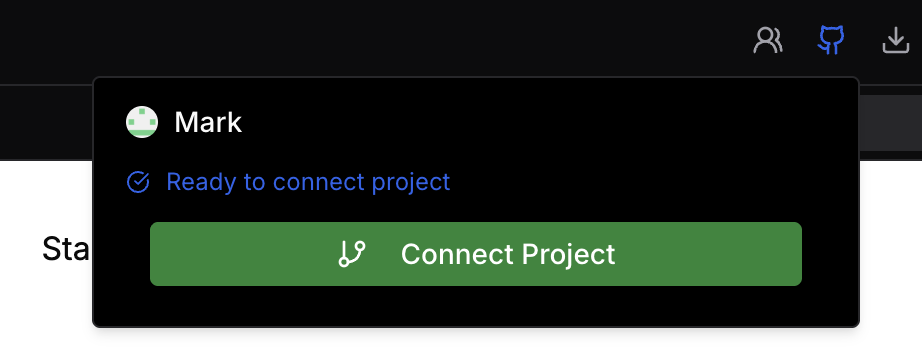
Click Create Repository to set one up. You'll be prompted to enter a name for the new GitHub repository.
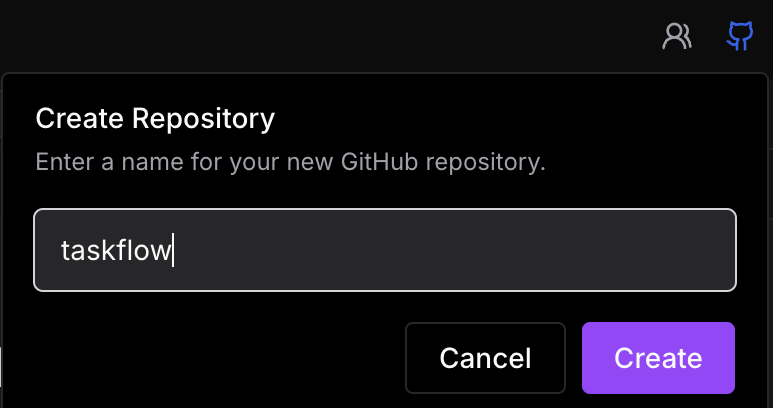
Always use a unique repository name. If the name already exists in your account or organization, the creation will fail with an error. When in doubt, add a project-specific suffix.
3. You're Connected
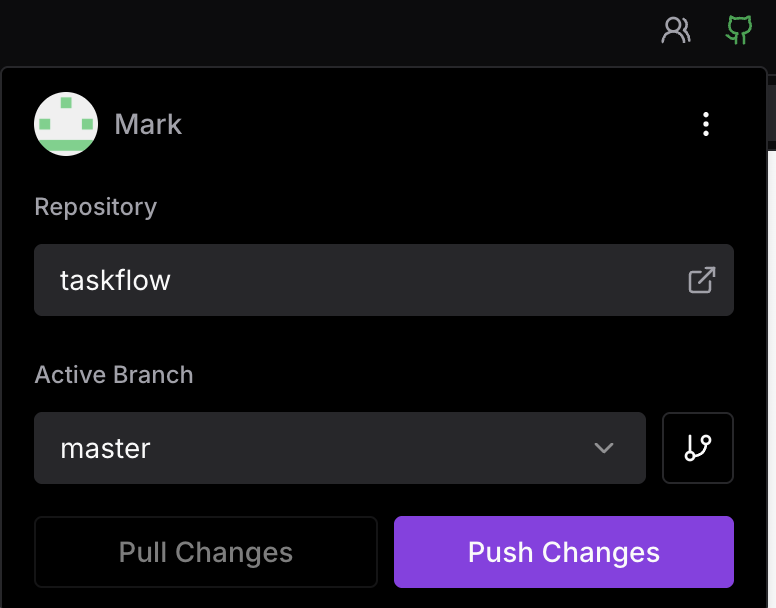
Once the repository is created and linked, the GitHub component updates to the connected state. You're ready to push and pull changes.
Pushing & Pulling Changes
Pushing Changes
When there are uncommitted changes in your project, the GitHub component will show a Push Changes option — visible in the connected state above. Click it to open the commit dialog.
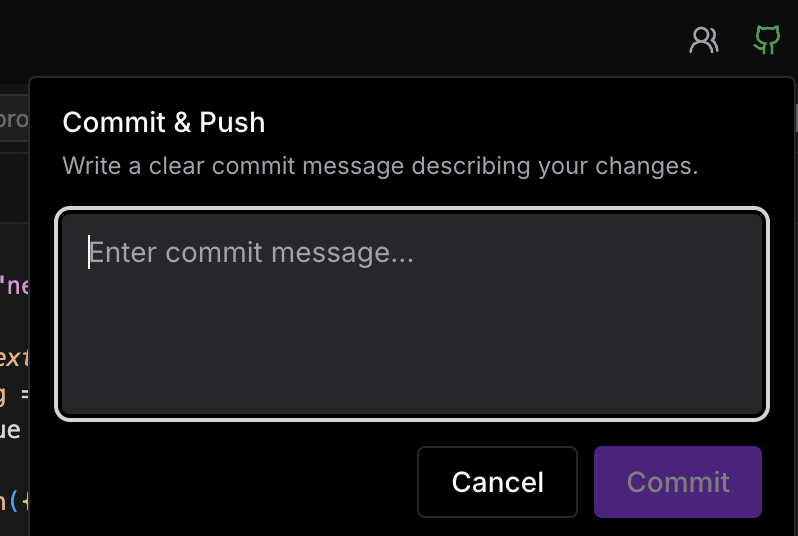
Enter a commit message describing your changes and confirm to push them to your GitHub repository.
Pulling Changes
When there are upstream changes on GitHub that aren't reflected in your project, a Pull Changes option will appear in the same component. Click it to bring in the latest commits from your repository.
If your project looks out of sync, use the Pull Changes button to manually fetch the latest state from GitHub.
Conflict Handling
If edits are made in both Ideavo and directly on GitHub at the same time, Ideavo prefers the local state over incoming GitHub changes. To avoid conflicts, pull before making significant changes when collaborating with others.
Branch Management
The active branch is displayed in the GitHub component. You can:
- Switch branches — click the branch name to see existing branches and switch to any of them
- Create a new branch — click the branch button to open the new branch dialog and name your branch
Branch operations can also be performed directly from inside the IDE without opening the GitHub component.
Ideavo tracks whichever branch is active. Changes pushed from Ideavo go to that branch, and incoming changes are pulled from it.
Disconnecting
To unlink your repository, open the GitHub component in the connected state and click the three vertical dots in the top-right corner. Select Disconnect to remove the link between your Ideavo project and the GitHub repository.
Disconnecting does not delete your GitHub repository — it only removes the connection within Ideavo.