

Tasks
Break work into clearly defined tasks and execute them concurrently in parallel.
What is a Task?
A task gives you a fully isolated sandbox to work on your project — completely separate from main version. Each task carries its own conversation history and session, so context never leaks between workstreams. You can start any task in Build Mode or Plan Mode, and create as many as your project needs. The Tasks Panel gives you a bird's-eye view of all tasks within a project, organized in one place.
Task Lifecycle
Tasks move through a defined set of states as work progresses. Adding a new task from the Tasks Panel starts it in Active state immediately. To begin in Draft first, create the task from the Kanban view.
Draft (optional) — stage the task without starting it.
Selected (idle) — the task is open but the agent is not running.
Active — agent is building in its own isolated sandbox.
Ready — task is complete and waiting to be merged.
Merged — changes are part of your main version.
Task states are one-directional, except that transitions between ready and active are supported in both directions.
Creating a Task
Click Add task in the Tasks Panel to get started. Two paths are available depending on whether you want to begin immediately or stage the work first.
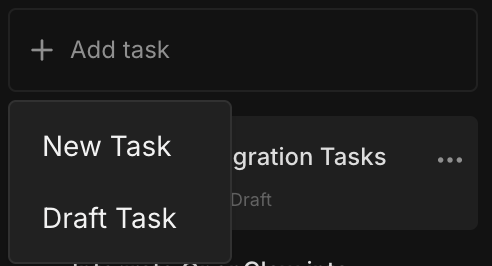
New Task
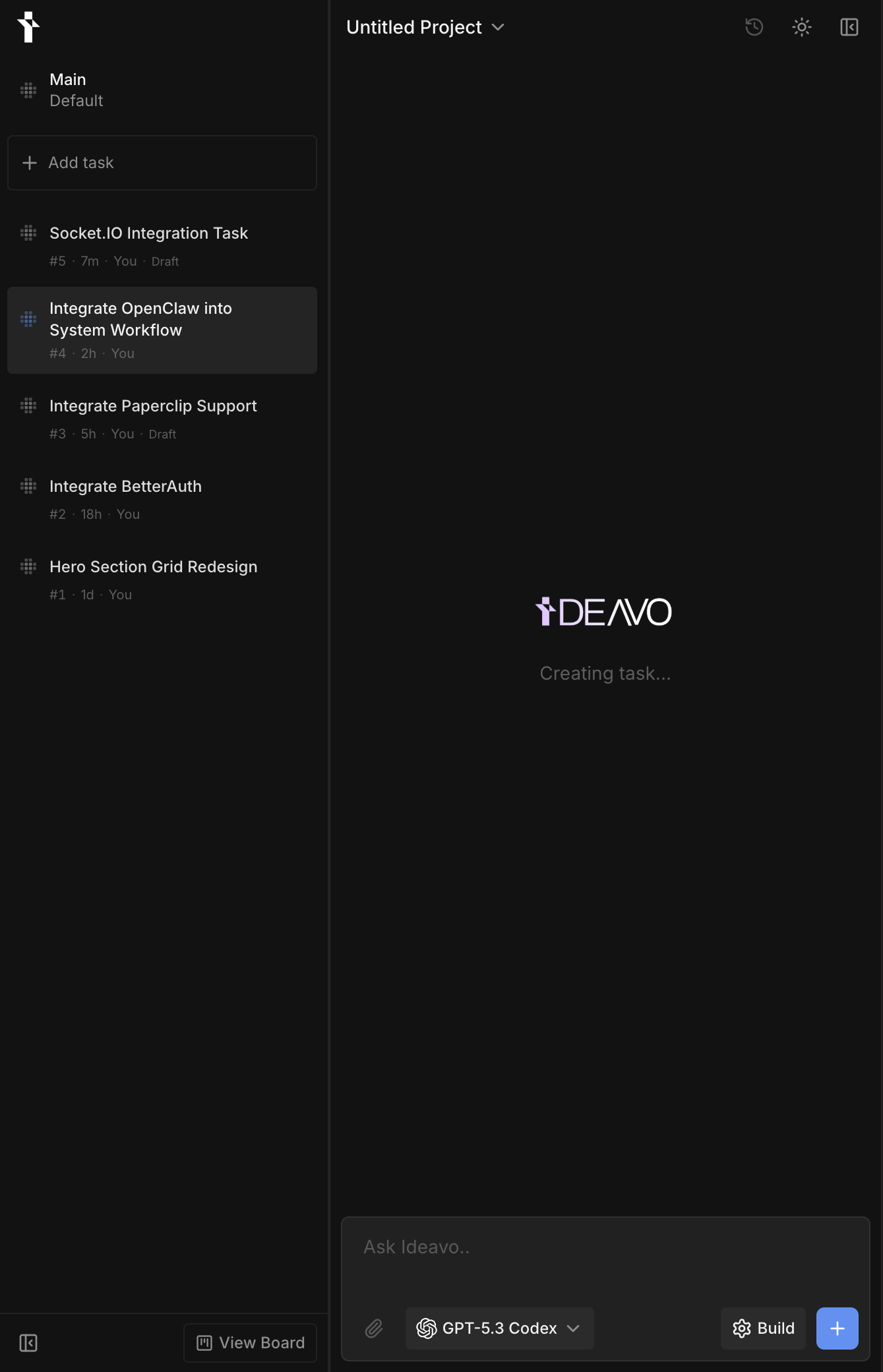
Describe what you want to build in the message box and send. The task goes Active immediately and Ideavo begins preparing its isolated sandbox.
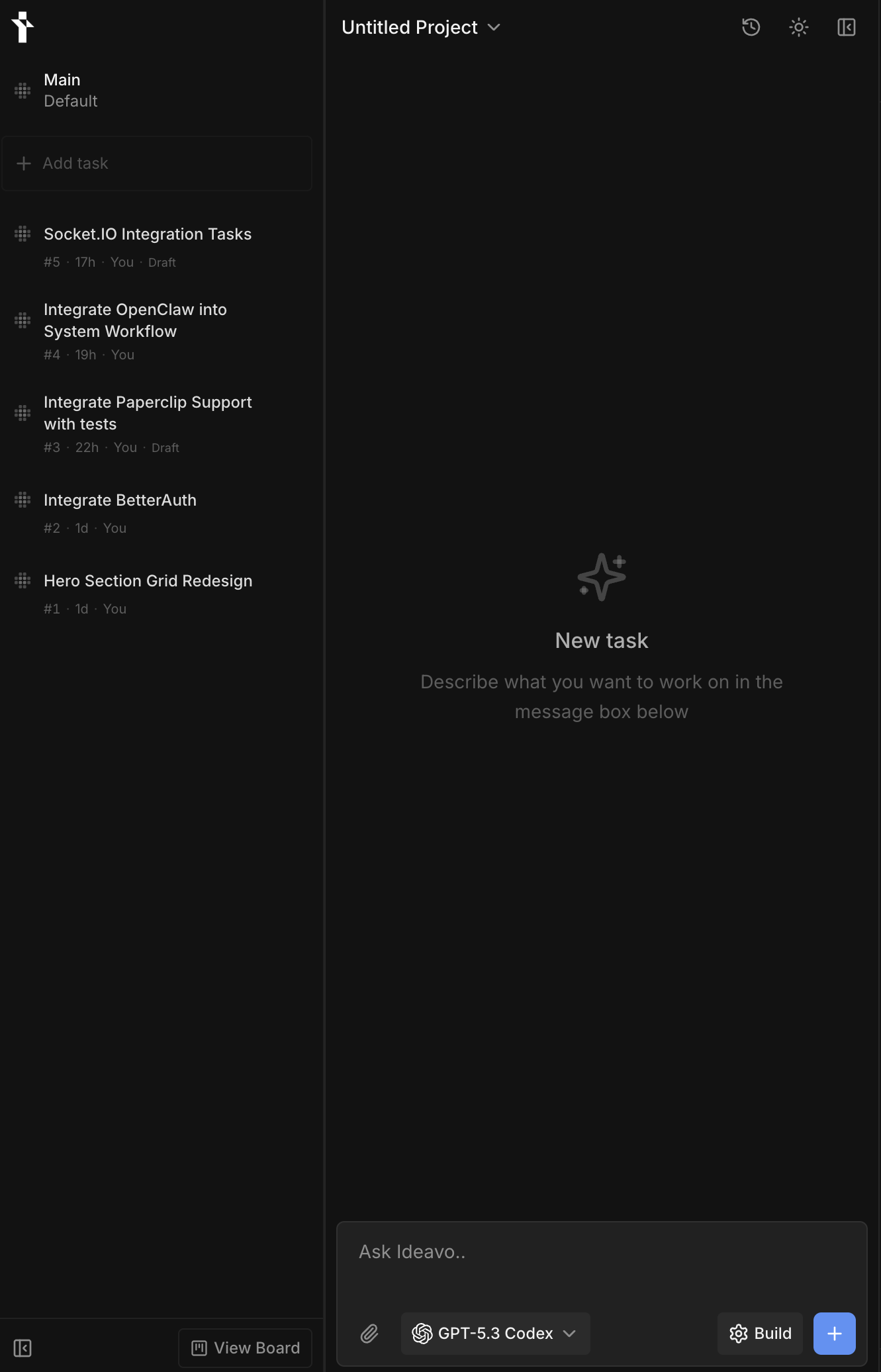 →
→
Draft Task
Drafts let you stage work without starting it — useful when the task isn't ready to run or you want a teammate to kick it off later.
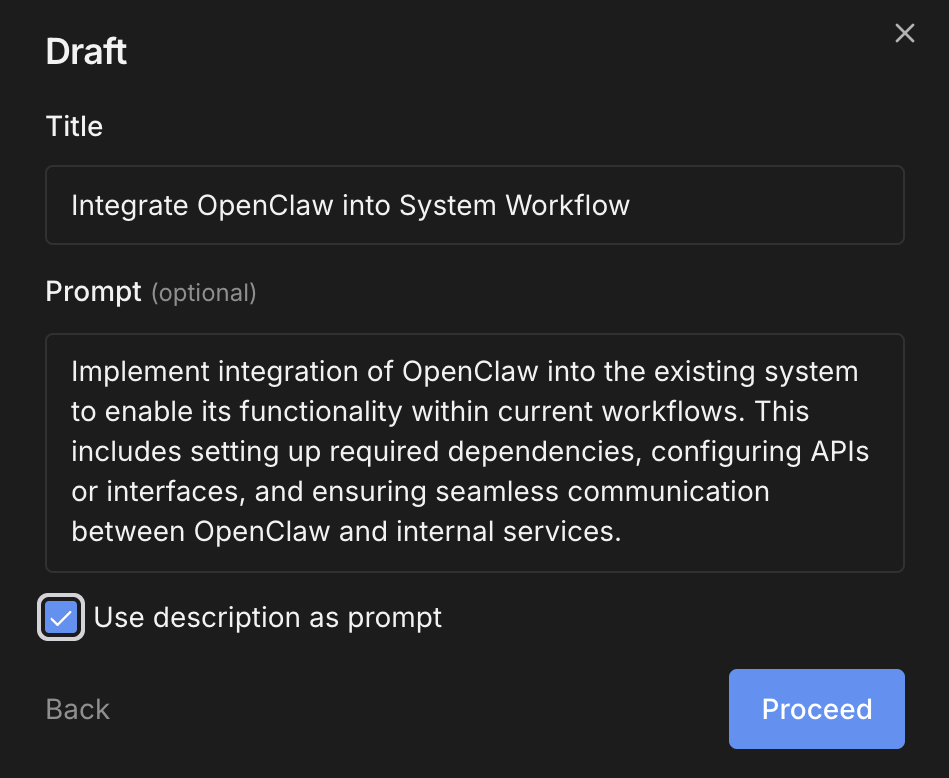
Title and description — Enter a title and an optional description. For existing drafts you can Save any changes or Start directly from here.
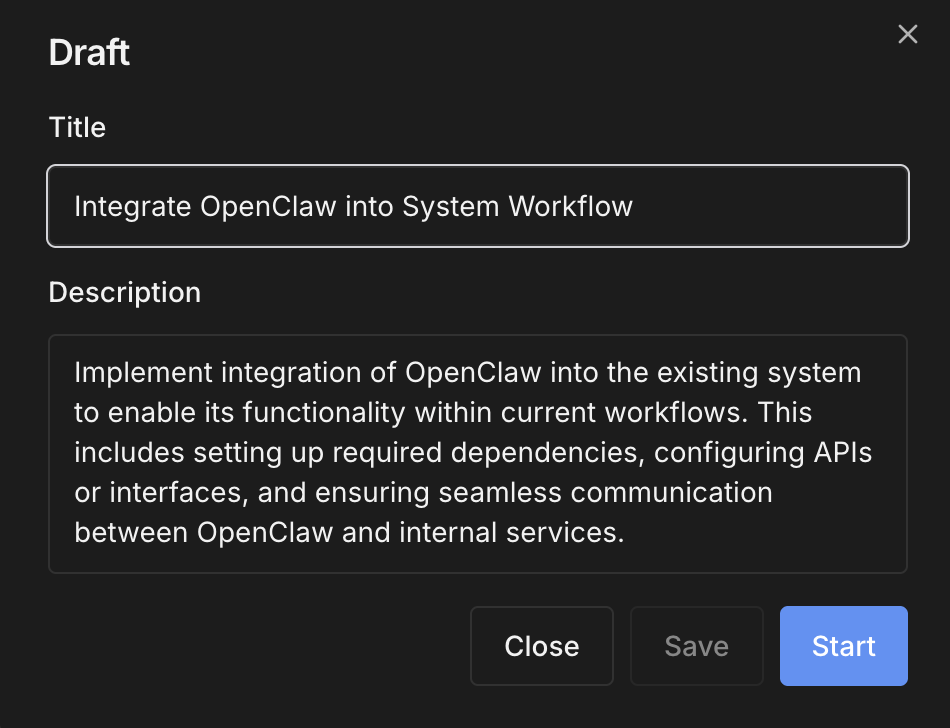
The description is for context only — it is not sent to the agent. To use it as the starting prompt, check Use description as prompt in the next step.
Confirm the prompt — Review or edit the prompt the agent will use. Check Use description as prompt to carry it over automatically, then hit Proceed. The draft goes Active and execution begins.
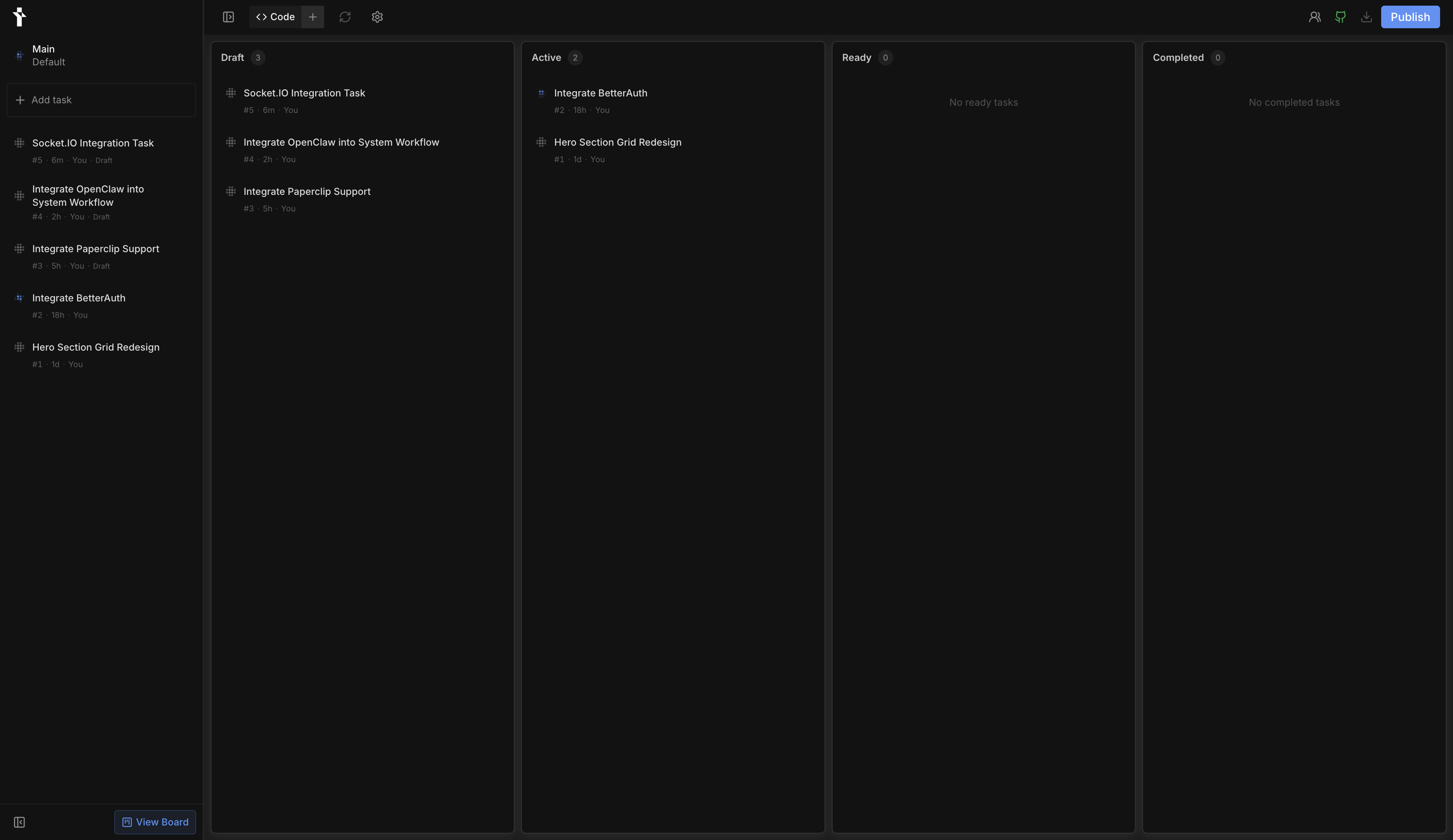
Kanban Board
The board organizes all tasks by state — Draft, Active, Ready, and Merged — giving you a clear picture of where every workstream stands at a glance. On desktop, open it from the View Board button at the bottom of the Tasks Panel.
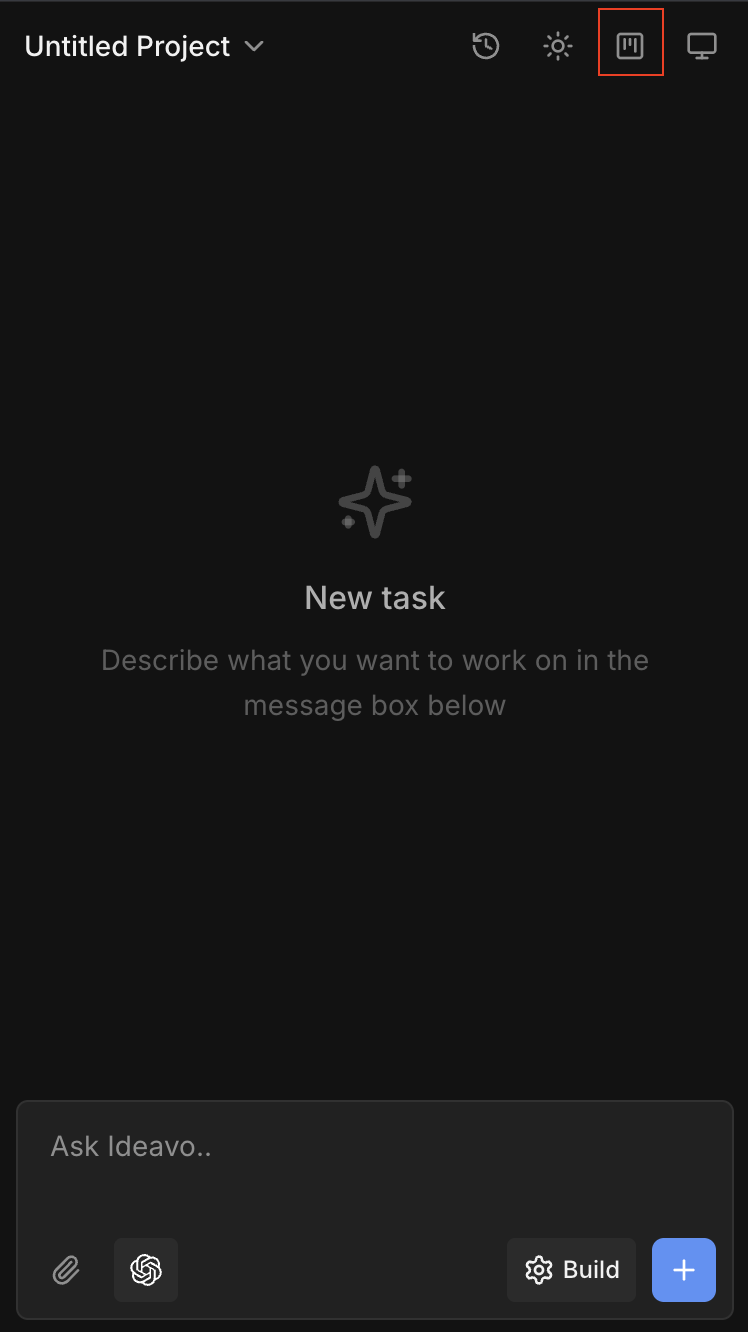
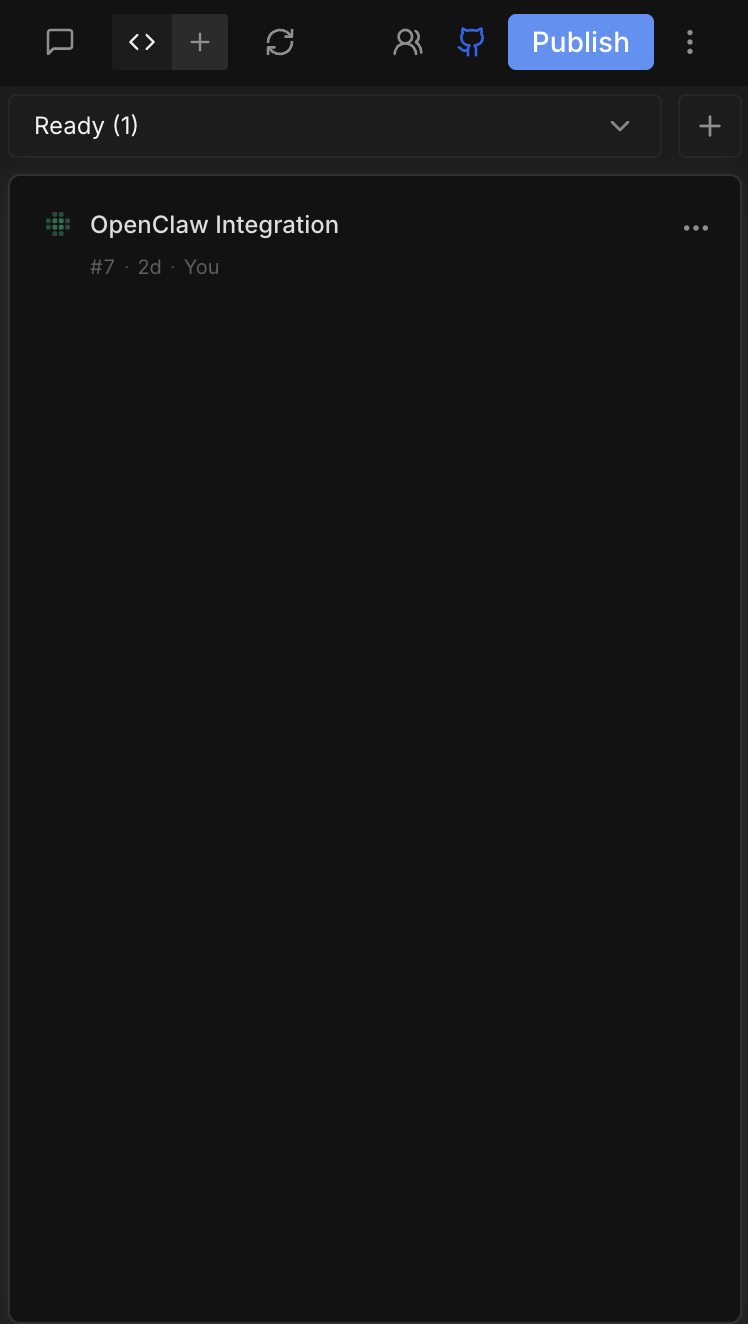
On mobile, the board is accessible directly from the board icon in the top bar. Use the dropdown at the top to switch between states — Draft, Active, Ready, and Merged — viewing one panel at a time. Hit the + button next to the dropdown to add a new draft task.
 →
→
To return to your main version — whether you've just created a new task or are currently inside another task — open the Kanban board and tap the first entry in the Active column. That item always represents your main version.
Managing a Task
Right-click a task in the Tasks Panel (or long-press on mobile) to open its context menu.
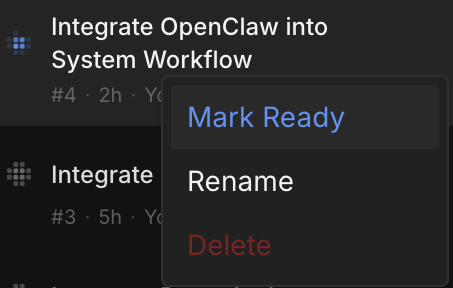
- Mark Ready / Mark Active — manually move the task between Active and Ready states. Use this when you want to signal a task is done without waiting for the agent, or pull it back to active to continue work.
- Rename — update the task title at any point.
- Delete — permanently removes the task and its sandbox. This cannot be undone.
Merging a Task
The Merge button appears in the task toolbar once a task reaches Ready state — meaning the agent has finished and is no longer running. It is disabled at all other times.
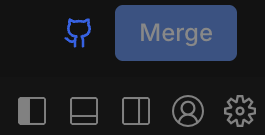
The git icon on the button reflects your repository connection status at a glance.
Clicking Merge opens a panel that walks you through the merge flow. If no remote repository is connected, the panel prompts you to connect one first before proceeding.
Connect Repository
If your project is not linked to a remote repository, clicking Merge shows the Connect Repository panel instead of the pre-flight check.
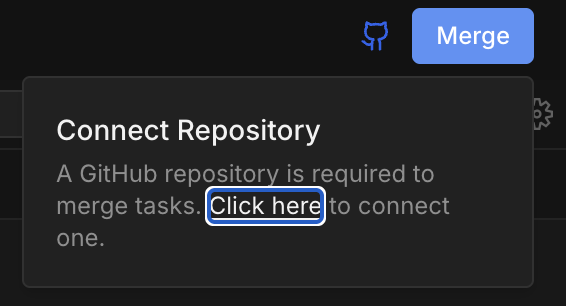
Click Click here in the panel to open the GitHub integration flow and link a remote repository. Once your project is connected, clicking Merge again will proceed to the pre-flight check.
Check Merge
This pre-flight step runs entirely inside your task sandbox. Ideavo fetches the latest default branch from the remote, rebases your task branch on top of it, and inspects the result.
- No conflicts — the rebased branch is pushed back to the remote and the panel advances to Ready to Merge.
- Conflicts detected — the conflicting files are listed. Hit Resolve with Agent to close the panel and hand the problem straight to the AI in your current session with a pre-filled prompt. Pick your preferred model, send, and once the agent finishes hit Re-check.
Merge Changes
Because the pre-flight already pushed a clean, rebased branch to the remote, this step has nothing to reconcile. Ideavo checks out the default branch on the main sandbox, pulls the latest remote, and merges the task branch in with a no-fast-forward merge commit. The result is pushed, the task is marked Merged, and a system message summarising the merge is added to your main session — leaving a conflict-free history throughout.
The merge button is only enabled when the task is in Ready state and neither the task nor your main version is currently running.
Try the full flow below — use the toggle to simulate both the success and conflict paths.
- Sync your changes with the latest main branch
- Check for any conflicts
- Resolve conflicts automatically if needed
What Can You Do with Tasks?
Tasks work for any project. Here are a few patterns where they shine:
- Explore multiple UIs — Spin up a separate task for each design direction, compare the results, and merge the winner. No branch switching, no lost work.
- Break down complex changes — Split a large feature into sequential tasks — data model first, then API, then frontend — so each piece is reviewable and mergeable on its own.
- Experiment without risk — Try a risky refactor or architectural spike in isolation. If it doesn't pan out, delete the task and your main version is completely untouched.
- Ship features in parallel — Run independent workstreams simultaneously so one feature never blocks another.