

Workflow
The Workflow panel defines the commands Ideavo uses to set up, run, and build your project — automatically configured and fully editable.
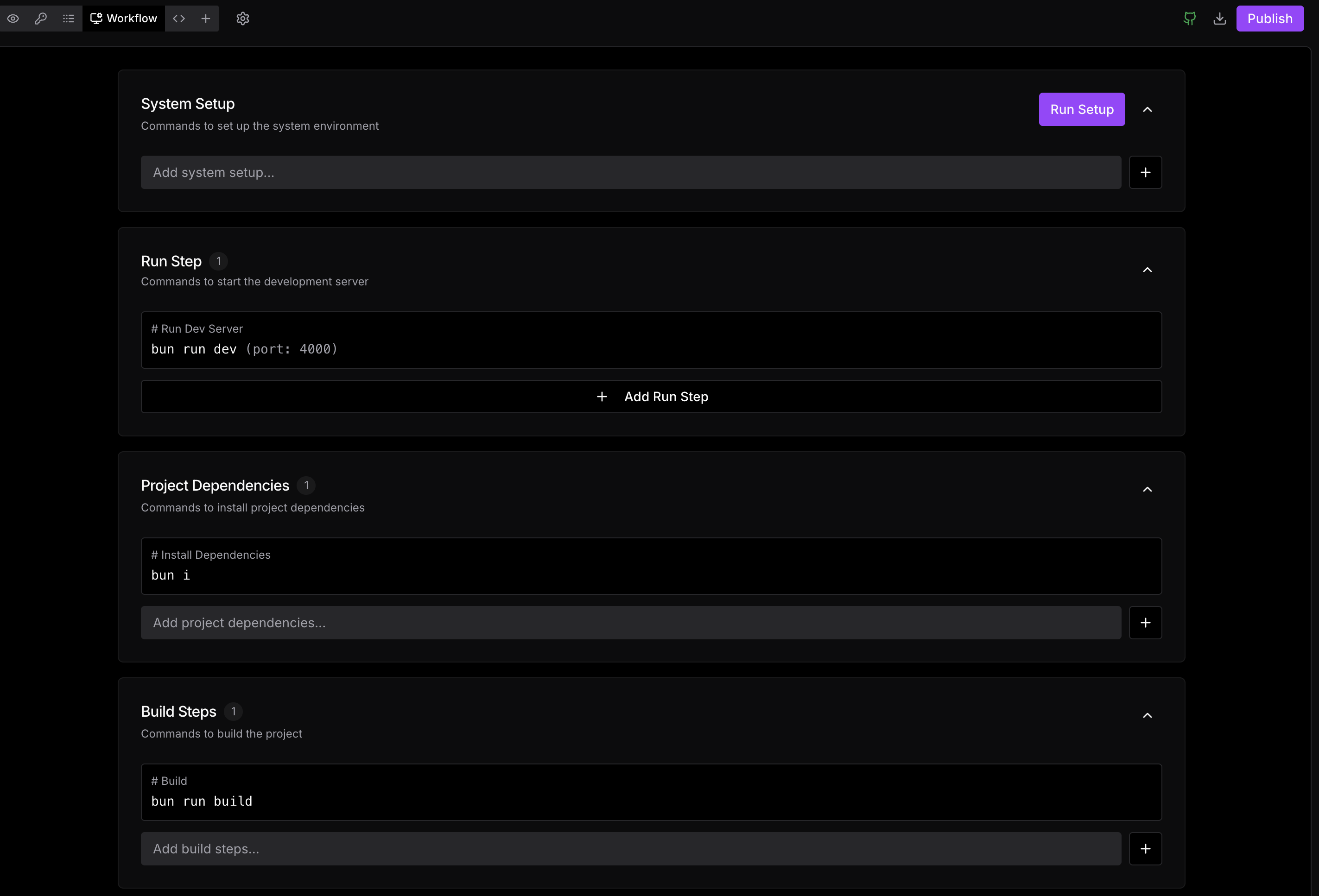
The Workflow panel defines the commands Ideavo uses to set up, run, and build your project. It is automatically configured by the agent when you create or import a project — and fully editable at any time to match your setup.
Auto-configured
The agent detects your framework and pre-fills every workflow section on project creation — no manual setup needed.
Fully Editable
Override any command, add extra steps, or restructure the workflow to fit your stack at any time.
Sections
System Setup
Commands that run once to configure the system environment — typically used for installing system-level dependencies. Click Run Setup to execute them manually when needed.
Project Dependencies
Commands to install project dependencies (e.g. bun i, npm install). These run before the dev server starts to ensure all packages are available.
Run Step
Commands to start the development server. The agent pre-fills this based on your framework (e.g. bun run dev --port 4000). Use + Add Run Step to add multiple run steps for projects with parallel services.
Build Steps
Commands to build the project for production (e.g. bun run build). Add additional steps with the + button for multi-stage build processes.
Deploy Steps
Commands to start the production server after a build (e.g. bun run start). Used when running your app outside of the dev environment.
Environment Paths
File paths for environment variable files (e.g. .env). Ideavo uses these to load the correct variables at runtime. Add additional paths if your project uses multiple env files.
Cleanup Files
Files and directories removed before a fresh install or build (e.g. .next, node_modules). Ideavo clears these to guarantee a clean environment on each setup.
Editing the Workflow
Each section has an input field and a + button to add new commands. Existing commands can be edited inline — click any command to modify it directly. The agent picks up changes automatically on the next run.
If the agent makes changes to your project that affect the framework or dependencies, it may update the workflow automatically to reflect the new setup.