

Project
Restore
Roll your project back to an earlier version and carry on from there.
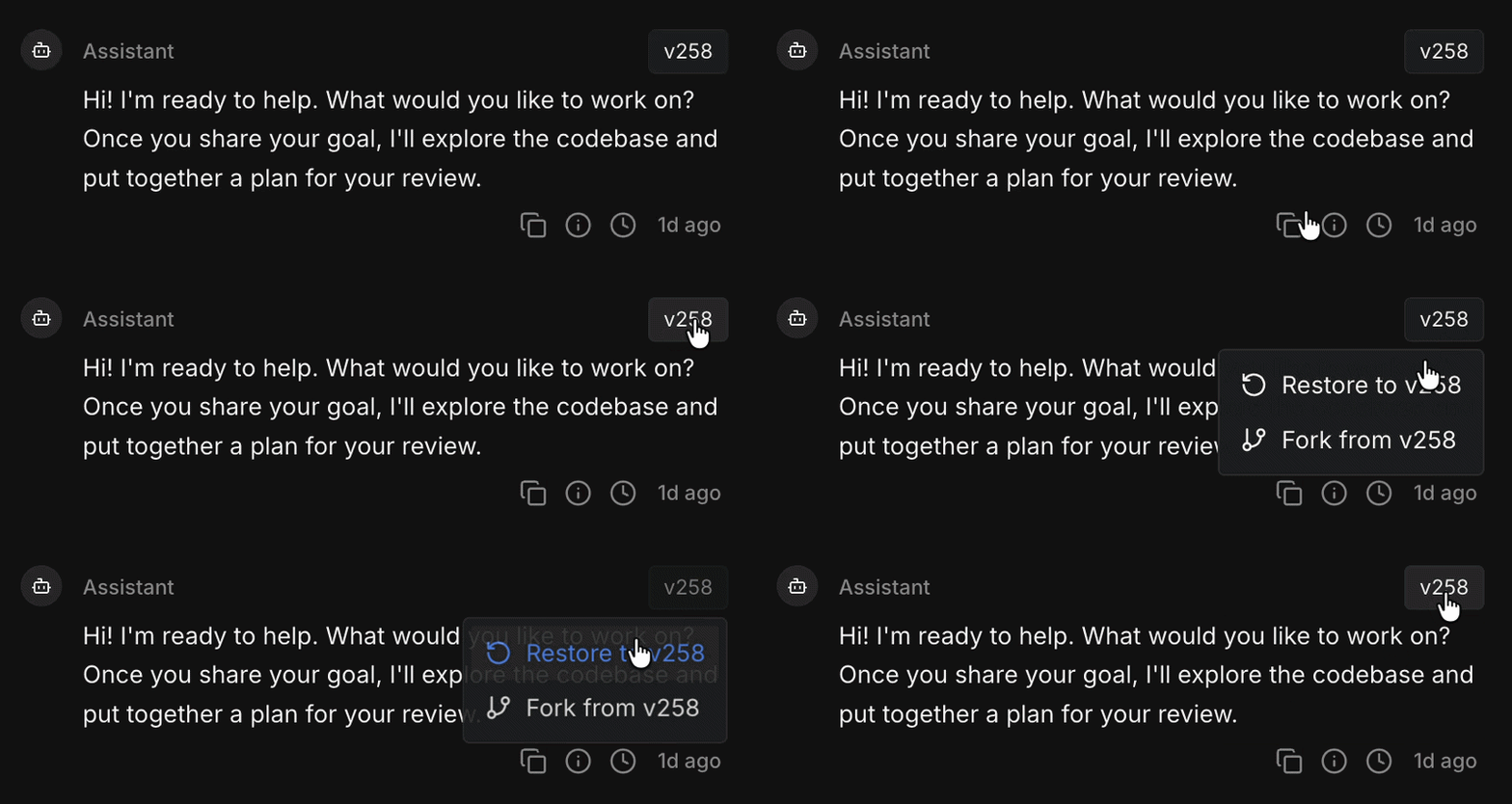
Every assistant message in chat carries a version badge — v1, v2, and so on. Click any badge and choose Restore to vN to bring your project back to how it looked at that point.
When To Use Restore
- A bad attachment or upload broke your session. Restore to just before it and keep going, instead of starting a fresh chat and losing your context.
- The agent solved it a different way than you wanted. Restore to before that prompt, then describe the approach you actually had in mind.
- A long back-and-forth burned context without much to show for it. Restore to the last good point and pick up from there.
- The agent made a few changes you've decided against. Restore rather than undoing them by hand.
How It Works
- Pick a version badge and choose Restore to vN.
- Your project files, your agent rules, and the agent's context all go back to that version.
- Chat shows a
Project restored to vNmessage, and you continue from there.
Work done after the version you restore to is removed from the project. If you want to keep it, Fork from that version instead — a fork leaves the original alone.
Good To Know
- Restore applies to the whole project, not single files. To undo one change, just ask the agent.
- Version numbers only go up. Restoring to v3 from v7 puts you on v8 with v3's contents.
- Later badges still work, so you can move forward again to a version you restored away from.
- If your project is connected to GitHub, the restored state is pushed to your branch.
When Restore Isn't Available
- While the agent is running — stop it first.
- When you're already on the latest version.
- On a task that's been merged.
- With viewer access.