

Fork
Duplicate your chat from a specific version into a brand-new project, leaving the original untouched.
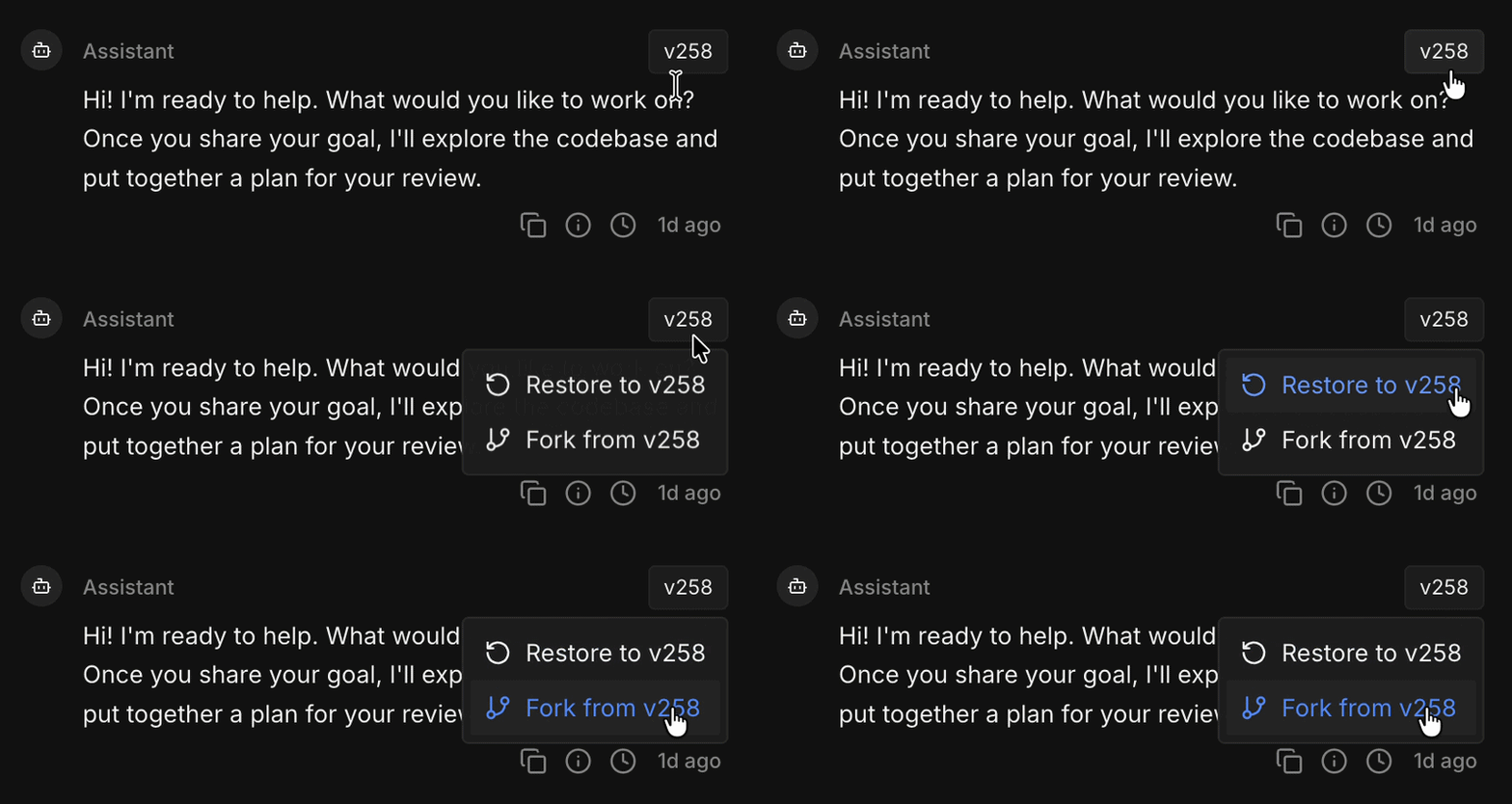
A fork copies your project as it was at a chosen version into a new project, with a fresh chat. The original stays exactly as it is.
When To Use Fork
- Explore a different direction. Try a different database provider, a different design, or a risky refactor — without touching the version that already works.
- Split your product into separate versions. Keep a stable project and take the fork somewhere new, as two independent projects.
- Give the agent a clean slate. A fork starts with no prior chat history, which helps when a long conversation has drifted or picked up assumptions you don't want carried forward.
- Hand off a copy. Branch off a known-good version for a different owner or a different track of work.
Want to try something out but keep working in the same project? A Task is usually the better fit. Fork is for when you want a separate project and a fresh start.
How It Works
- Pick a version badge in chat and choose Fork from vN.
- Ideavo creates a new project named
<Your Project> Forkfrom your files at that version. - You land in the new project, ready to keep building.
What Comes Along
Your project files at that version come across, along with your linked GitHub repository if you have one.
Chat history, attachments, and version history do not — the fork starts fresh at v1. Describe what you're building in your first prompt so the agent has the context it needs.
Forking isn't supported from inside a task. Leave the task and fork from the project's main chat instead.
Forking Onto A Branch
When you switch to or create a branch from the repository panel, Ideavo asks whether to Fork Repository — forking your project onto that branch — or Continue in Chat. Forking onto a branch needs a connected GitHub account. See GitHub.
When Fork Isn't Available
- Inside a task.
- While the agent is running — stop it first.
- With viewer access, or without workspace permissions.